Skip to content
Emayler
PricingDocs
Sign inGet started

Get started

Help homeSet up your accountSet up your email

Your email

Connect your domainCreate mailboxesUse aliasesUse your inboxSend emailImport existing mail

Your account

Manage your accountBilling & plansAccount & email settingsTroubleshooting

Optional integrations

Create API keysSet up email with the APIConnect your applicationConnect domains with the APICreate addresses with the APIRead & send with the APIImport mail with the APIManage billing with the APIConnect an MCP clientMCP tools
Browse documentationSend email +

Get started

Help homeSet up your accountSet up your email

Your email

Connect your domainCreate mailboxesUse aliasesUse your inboxSend emailImport existing mail

Your account

Manage your accountBilling & plansAccount & email settingsTroubleshooting

Optional integrations

Create API keysSet up email with the APIConnect your applicationConnect domains with the APICreate addresses with the APIRead & send with the APIImport mail with the APIManage billing with the APIConnect an MCP clientMCP tools

Help & guides

Send email

Write a message, choose your From address and send from your own domain.

Before your first send

  • Connect and verify your domain.
  • Create a mailbox and make sure you have a verified sending address in Identities.
  • Check that sending is enabled in dashboard Settings. If approval is pending, contact support.
  1. 1

    Open the inbox

    Choose Open inbox in your dashboard and select the mailbox you want to use.
  2. 2

    Choose Compose

    A new-message window opens.
  3. 3

    Check From and To

    Choose a verified From address. Enter the recipient in To. Use Cc or Bcc if needed.
  4. 4

    Write your message

    Add a subject and message. Use Attach files to add attachments, then wait for uploads to finish.
  5. 5

    Send

    Review the recipients and choose Send. Use Sent to find messages you have sent.
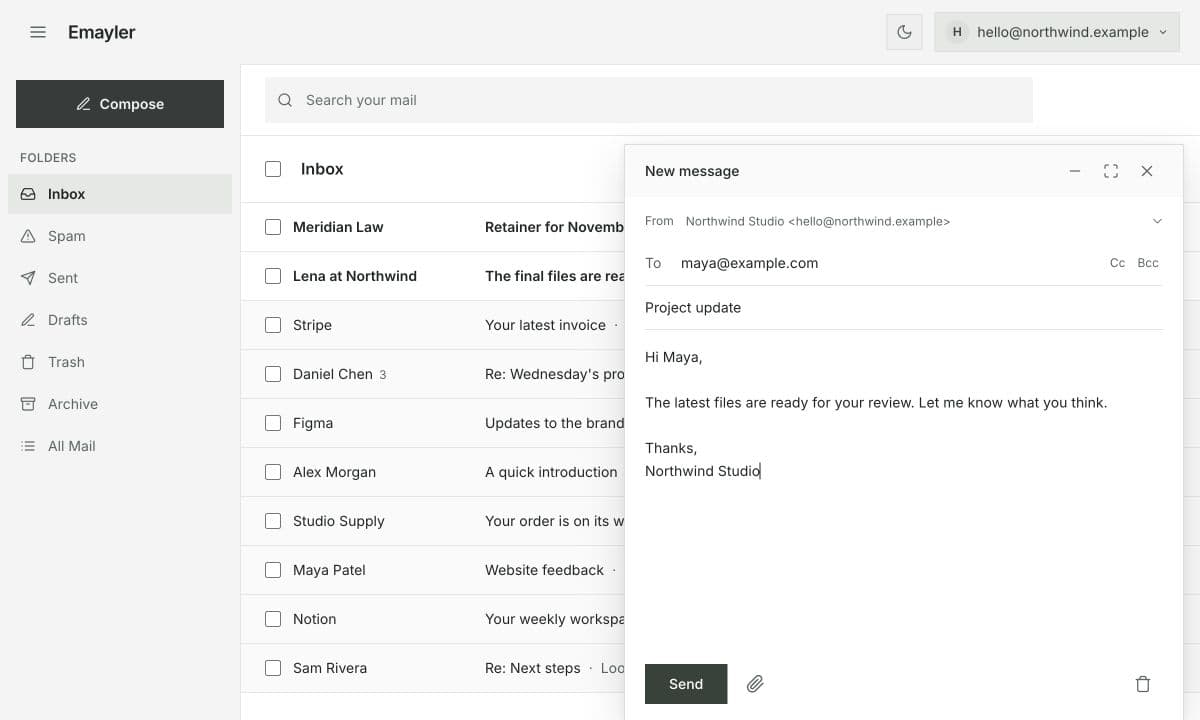
A new email with recipient, subject and message filled in

Reply or forward

Open a conversation and choose Reply, Reply all or Forward on the message. Check the recipients and From address before sending.

Attachments

You can attach up to 10 MB in total to a message. If an upload fails, remove the failed attachment and try again, or send a smaller file.

Sending is unavailable

Check your domain status, the selected sending identity and the Sending section in dashboard Settings. An upgrade does not replace sending approval. See Troubleshooting if you still cannot send.

PreviousUse your inboxNextImport existing mail
Emayler

Product

Bring your domainPricingInbox

Developers

Documentation

Company

ContactDashboard

Legal

Legal overviewPrivacyTermsAcceptable useDPASubprocessorsBilling & refundsCookiesReport abuse

© Emayler, 2026. All rights reserved.