Using the dashboard
API keys
API keys let scripts and agents talk to Emayler on your behalf. Create them in the API Keys tab; the token is shown once and never again.
Create a key
Open the API Keys tab
It is one of the tabs in the dashboard, listed alongside the other organisation tools.
Click Create
This opens a small dialog to describe the new key.
Give the key a name
Something like "deploy script" or "CI" helps you recognise it later.
Pick a scope
Choose read or write. The full token appears once in the dialog with a copy button.
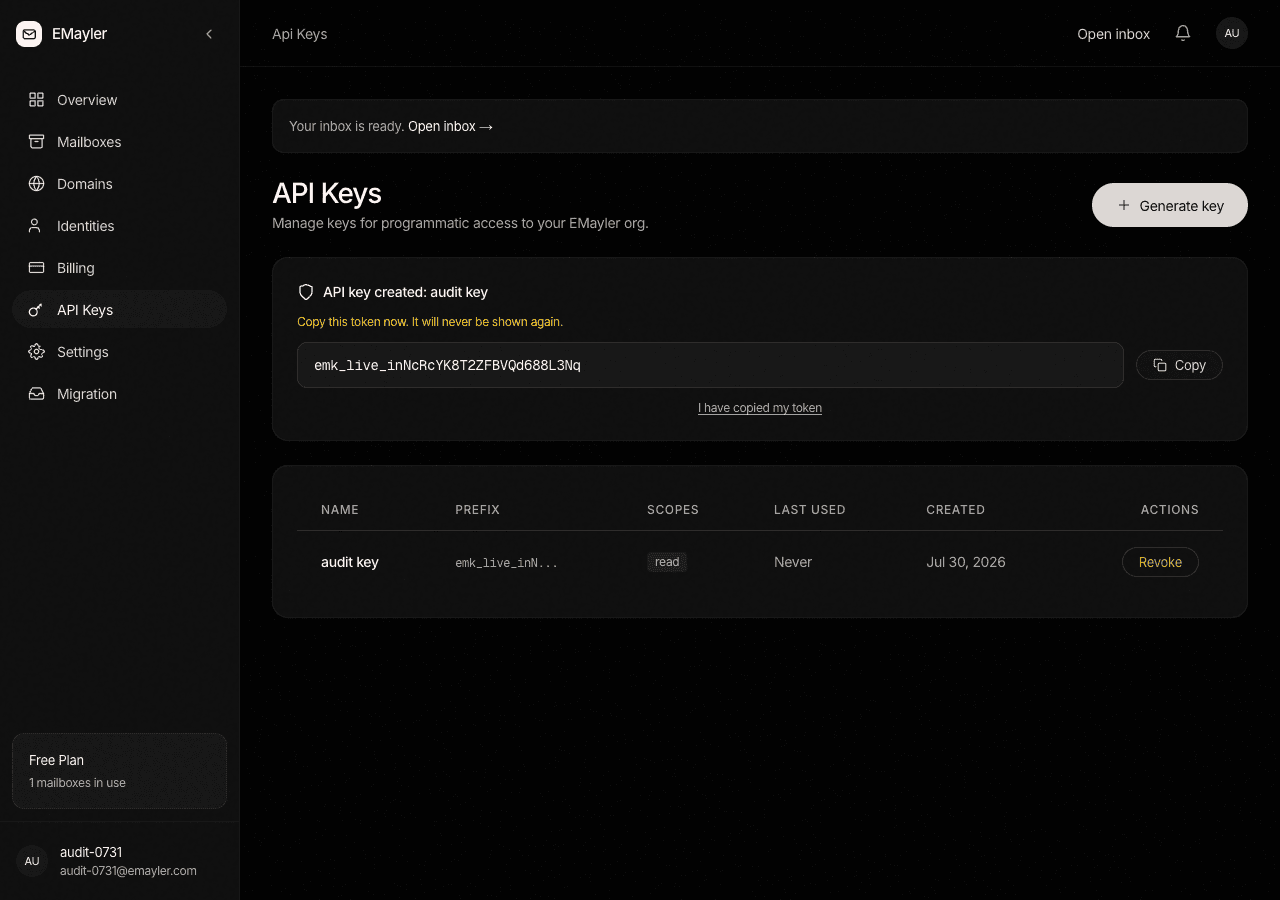
The token is shown once
The full token appears only in the creation dialog, with a copy button beside it. Store it where your automation can reach it right away. Emayler keeps only a SHA-256 hash of the token, so if you lose it you cannot recover it: you create a new key and revoke the old one. After creation the list shows only the prefix, the scopes, and the last-used time.
Store it now
The raw token is displayed once and never again. If you close the dialog without saving it, revoke the key and create a fresh one.
Scopes
| Scope | What it can do |
|---|---|
| read | GET only. Read domains, mailboxes, threads, and messages, never change anything. |
| write | Every method. Create, edit, and delete resources, send mail, and run imports. |
Give each key the smallest scope that does the job. An automation that only reads mail should use a read key so an accidental mistake cannot change or delete anything.
Revoke
Click revoke on a key and confirm. Revocation takes effect immediately; the key stops working on the next request.
Prefer to script this?
See the API reference: Billing & settings.