Using the dashboard
The dashboard
The dashboard is the control room for your organisation: domains, mailboxes, identities, billing, keys, and migration. Reading and writing mail happens in the inbox. Every tab deep-links as /dashboard?tab=<name>.
The tabs
| Tab | What you do there |
|---|---|
| Overview | Account at a glance: plan, domain and mailbox counts, sending status. Usage charts for messages, storage, and bounce rate are marked coming soon. |
| Mailboxes | Create, search, edit, and delete mailboxes; set display name and quota. |
| Domains | Add domains, see verified or pending state at a glance, open the DNS instructions, jump to the per-domain DNS page. |
| Identities | Attach send-as addresses to your user, with a verified or pending badge on each. |
| Billing | Current plan, sending status, upgrade flow, Stripe portal link, invoice history. |
| API Keys | Create keys with read or write scopes, copy the token once, revoke. |
| Settings | Organisation name, sending status, passkeys, danger zone, plus per-mailbox filters and the vacation responder. |
| Migration | IMAP imports: start one, watch progress folder by folder. |
Mailboxes
Add a mailbox by picking a verified domain and typing a local part; the input validates as you type. You can also set a display name and a quota in GB at creation. The list filters as you type, and deleting a mailbox asks for confirmation first, so a double-click never creates one twice.
Domains
Adding a domain validates the name in the browser before anything is sent: no scheme, path, port, spaces, leading www., or trailing dot, and each label must be letters, digits, and hyphens with no leading or trailing hyphen. After creation the domain shows as pending with a DNS instructions dialog (copy buttons on every record) until verification completes. The domains page has its own guide: Domains & DNS.
Identities
An identity is a send-as address attached to your user: address plus an optional display name. Each shows a verified or pending badge, and the compose window defaults to your first verified identity. Identities are what make send-as a stored entry instead of a per-device mail client setup; the concepts page covers why the model works this way.
Billing
The plan card shows your tier and the organisation's sending status side by side, because they are independent: paying never flips the send gate. Upgrade opens a dialog with tier and monthly or annual interval, then redirects to Stripe checkout. Manage billing opens the Stripe portal once a Stripe customer exists. The invoice table lists every invoice with a link to its hosted PDF.
A downgrade that would orphan mailboxes or domains is refused, so you trim resources first and downgrade second.
API keys
Create a key with a name and read or write scopes. The token appears once in the dialog with a copy button; after that the list shows only the prefix, scopes, and last-used time. Revoking asks for confirmation and takes effect immediately.
Settings
Passkeys
Register a passkey to sign in without a password. Registration uses the platform WebAuthn flow (Touch ID, Windows Hello, or a hardware key), and each credential can be removed individually.
Sending
The Sending card shows whether sending is on or off. When it is off, the card tells you to contact support to enable sending; there is no toggle to flip yourself.
Filters
Per-mailbox filters match incoming mail on sender or subject and move matches to a folder (Archive by default). Each filter can be toggled on or off without deleting it.
Vacation responder
Per-mailbox auto-reply with a subject, plain-text body, and optional start and end dates. Turning it off is just disabling the same record; an empty state simply means no responder has been configured.
Danger zone
Full data export and organisation deletion are handled with support, not self-serve buttons, because both are irreversible-adjacent operations on mail people cannot afford to lose.
Migration
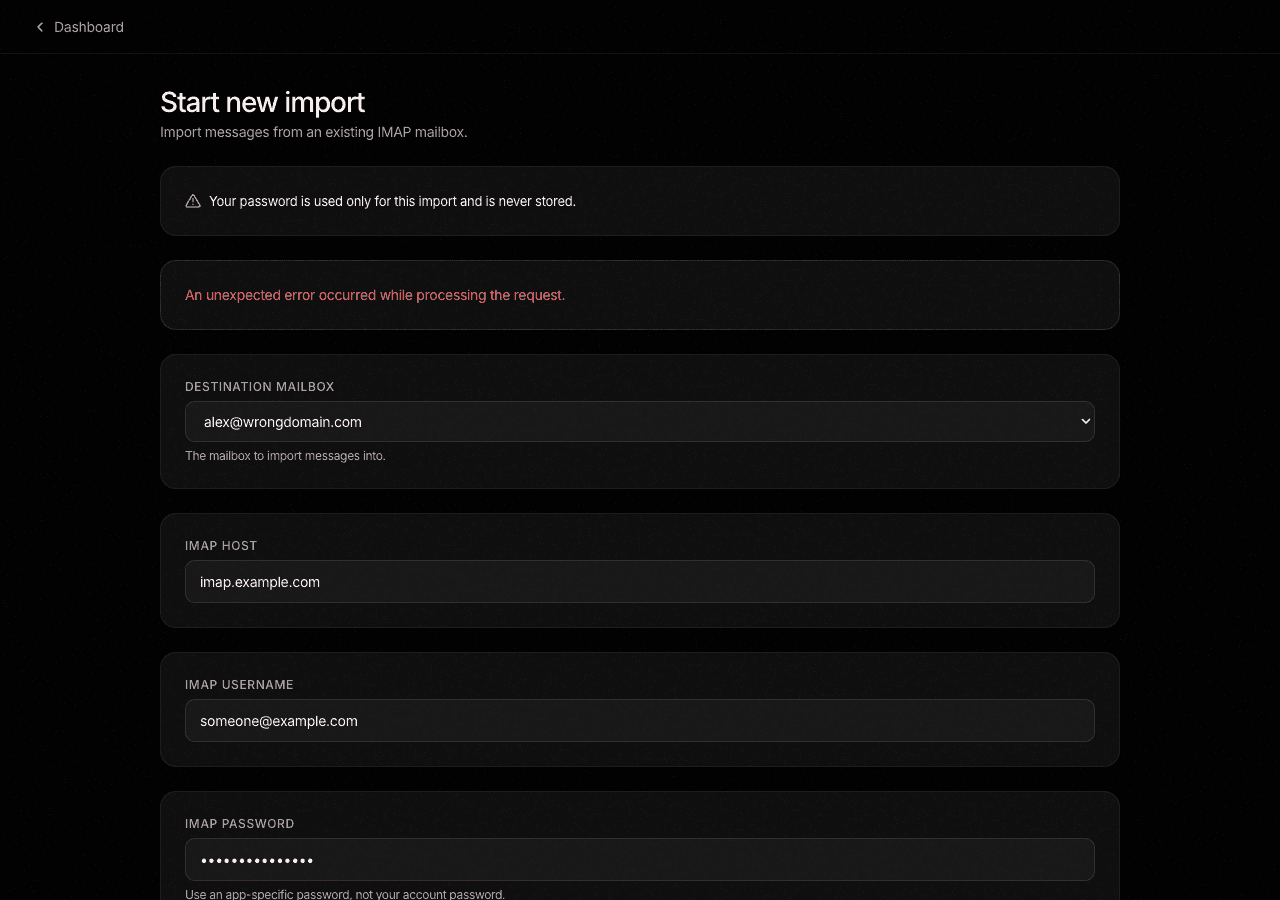
Use the Migration tab to import mail from another provider. Pick a destination mailbox, enter the source host (a picker suggests hosts for common providers like Gmail, Outlook and Fastmail), user, and password. The progress view shows per-folder counts and an ETA, and a finished import can be partial with an explanation rather than a bare failure. See Migration for the full walkthrough.
Want to automate this?
See the API reference to script any of these tasks, or hand them to the MCP server.