Using the dashboard
Migration
Move an existing mailbox into Emayler over IMAP. The importer works folder by folder and finishes unattended; a 40,000-message import completes without babysitting.
Start an import
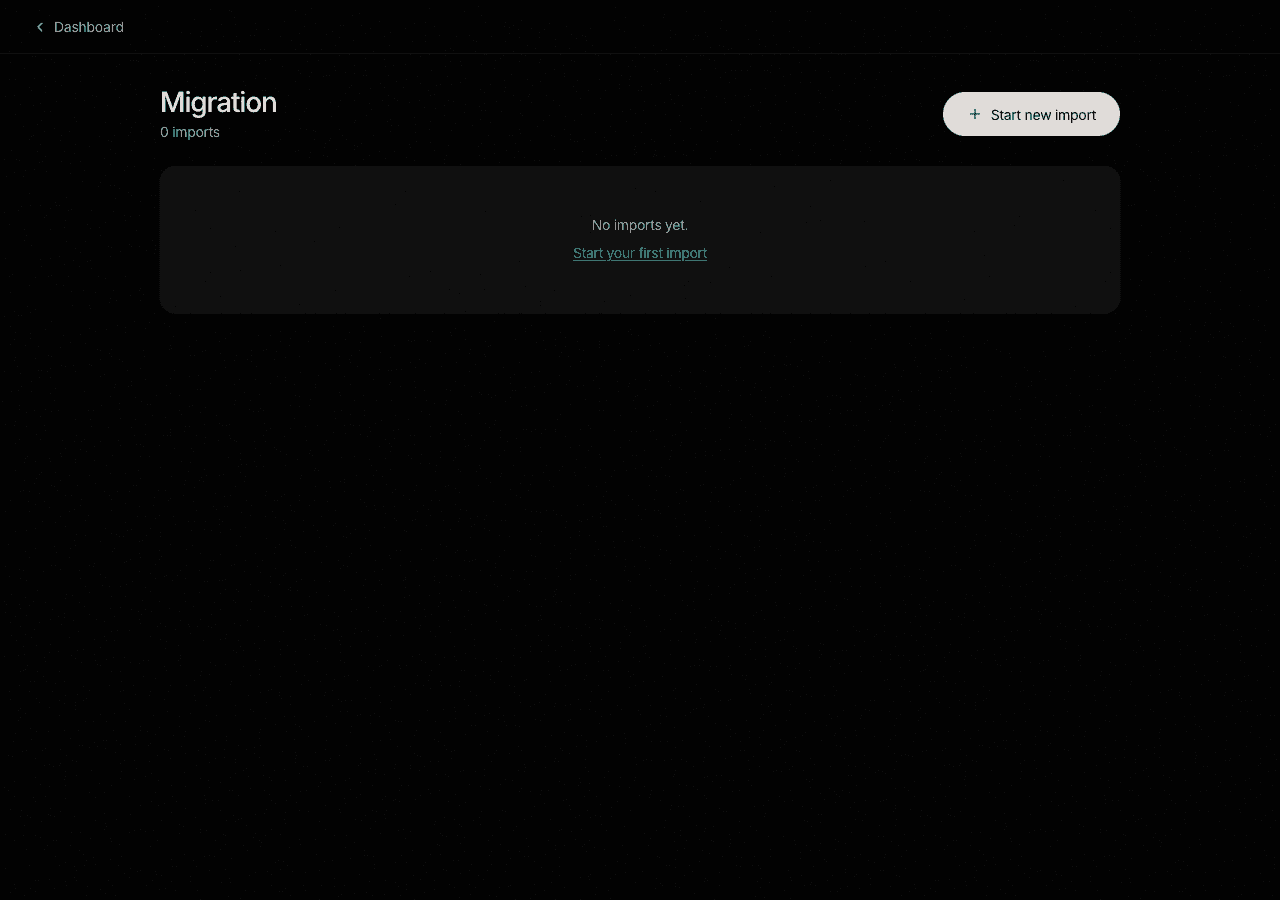
Open the Migration tab
It is one of the tabs in the dashboard, listed alongside the other organisation tools.
Pick the destination mailbox
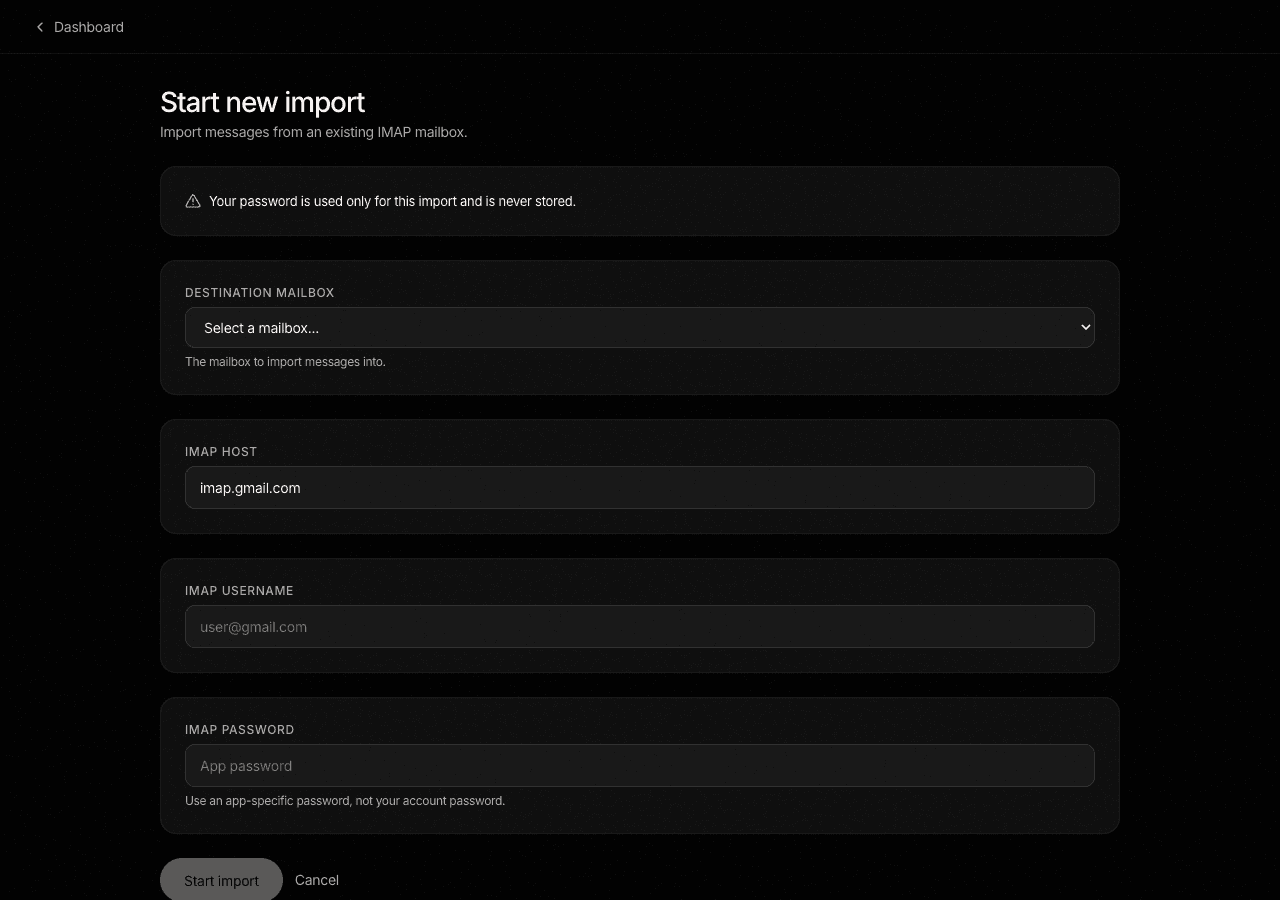
Choose which Emayler mailbox the imported mail should land in.
Enter the source host
Type the IMAP host of the account you are importing from. A picker suggests the hosts for Gmail, Outlook, Yahoo and Fastmail.
Enter the user and password
These are the credentials for the source account, not your Emayler login.
Password handling
The password lives only in the form. It is sent once and cleared from memory immediately after the import starts, so it is never stored. If the source provider supports app passwords, use one, so the import does not need your primary account password.
Use an app password
Providers that support app passwords make imports safer. Create one for the source account instead of using the account password.
Progress
The progress view shows per-folder counts and an ETA, so you can see each folder finish as the importer works through it. The importer runs unattended; you do not need to keep the tab open after it starts.
Resume after interruption
If an import is interrupted, it resumes where it stopped instead of starting over, so a dropped connection does not lose the work already done. A finished import can be partial with an explanation of what was skipped rather than a bare failure.
Prefer to script this?
See the API reference: Imports.