Using the inbox
The inbox
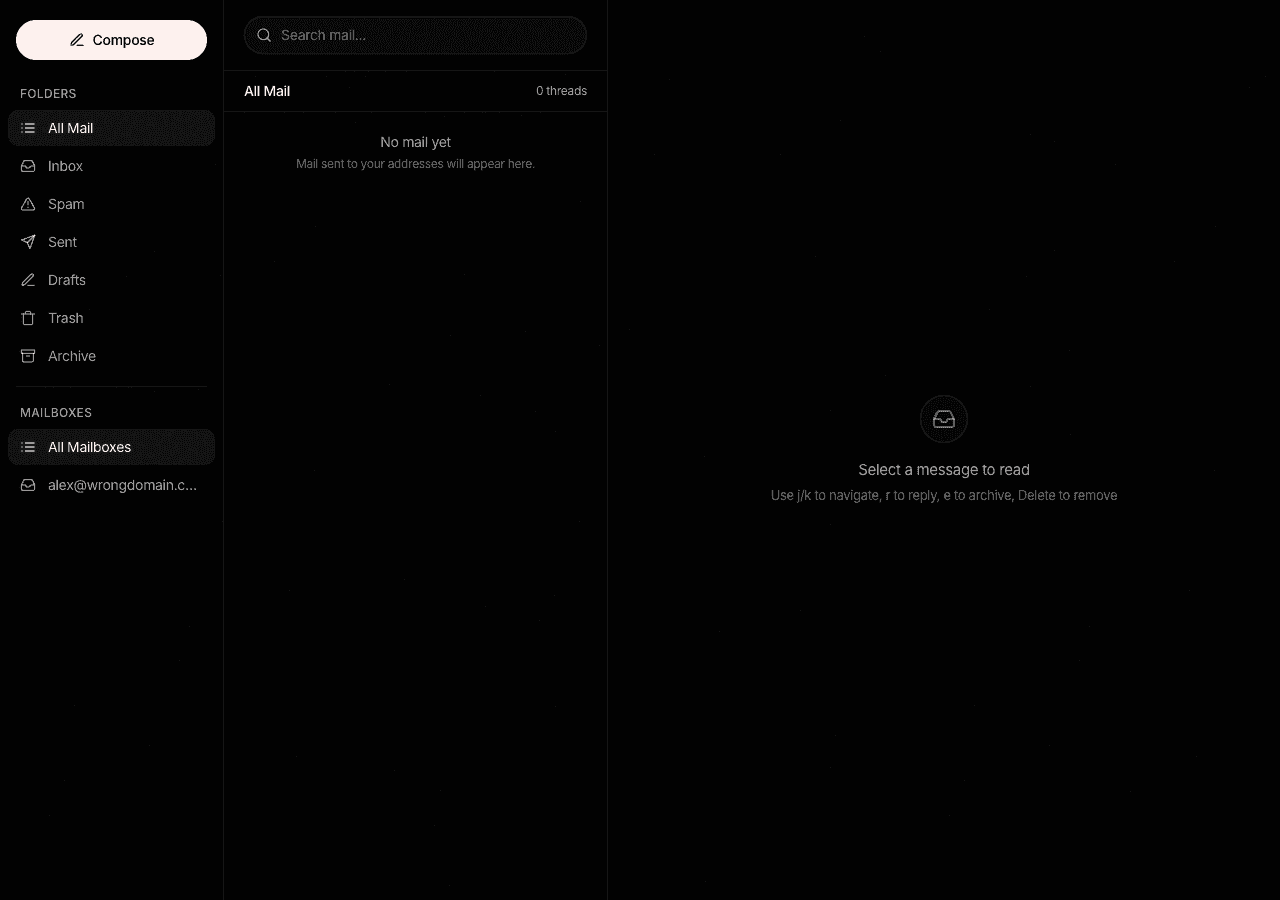
The inbox is the product: a three-pane web client for the mailboxes you set up, designed to be chosen over Gmail and Outlook rather than tolerated as webmail.
Layout
Three columns: folders on the left, the thread list in the middle, and the reading pane on the right. Compose opens as a focused window over the list. The list refreshes itself every 60 seconds while the tab is visible, so new mail appears without reloading.
The folders are All Mail, Inbox, Spam, Sent, Drafts, Trash, and Archive. Spam is where quarantined mail lives; Emayler quarantines suspect mail rather than discarding it, so check Spam before assuming something never arrived.
Keyboard shortcuts
| Key | Action |
|---|---|
j | Move selection down the thread list |
k | Move selection up |
e | Archive the selected thread |
Delete / Backspace | Move the selected thread to Trash |
r | Reply to the selected thread |
/ | Focus search |
Shortcuts suspend themselves while you are typing in a field or while a dialog is open, so they never eat your keystrokes mid-sentence.
Reading
Opening a thread marks it read and renders each message in the reading pane. HTML mail is cleaned before display: anything potentially dangerous is stripped out, and remote images are blocked by default so senders cannot track you opening the message. Attachments list under each message and download through a separate link, never inline on the app's own domain.
Reply, Reply all, and Forward sit on each message. Reply all excludes your own addresses and identities automatically, so you do not CC yourself.
Thread actions
- Archive clears a thread from Inbox without deleting it.
- Trash moves it to Trash; move it back to Inbox from there.
- Snooze hides a thread until a date you pick; it returns to Inbox that morning.
- Labels are free-form tags you add and remove per thread, for workflows that folders are too rigid for.
Search
The search field runs as you type with a 300 ms debounce and needs at least two characters. Results page in and duplicates merge if new mail arrives while you scroll.
Composing
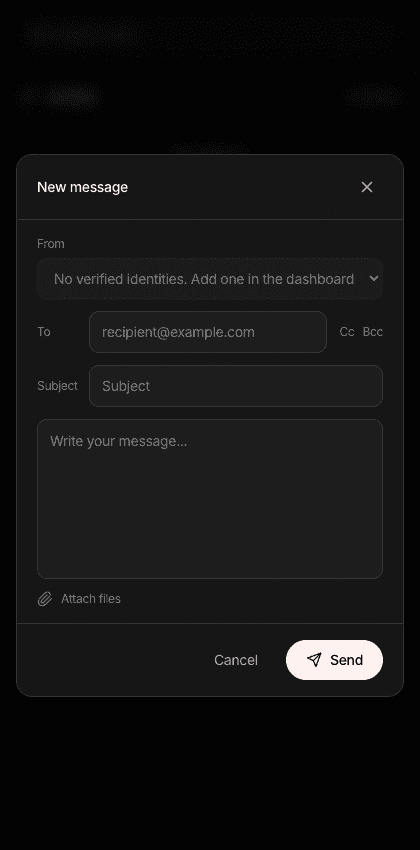
The compose window picks your first verified identity as the sender; switch identities with the From picker. To, Cc, and Bcc accept multiple addresses and highlight invalid ones instead of failing at send time.
Attachments
Files upload the moment you drop them in, each with its own progress state, so send never waits on a big file. The limit is 10 MB total across all attachments on a draft; the window tells you the running total and refuses to send while an upload is still in flight.
Drafts and closing
Escape closes the window, and closing with unsent text asks for confirmation first, so a stray keypress never discards a half-written reply. Replies thread correctly in Gmail, Outlook and Apple Mail automatically.
Mobile
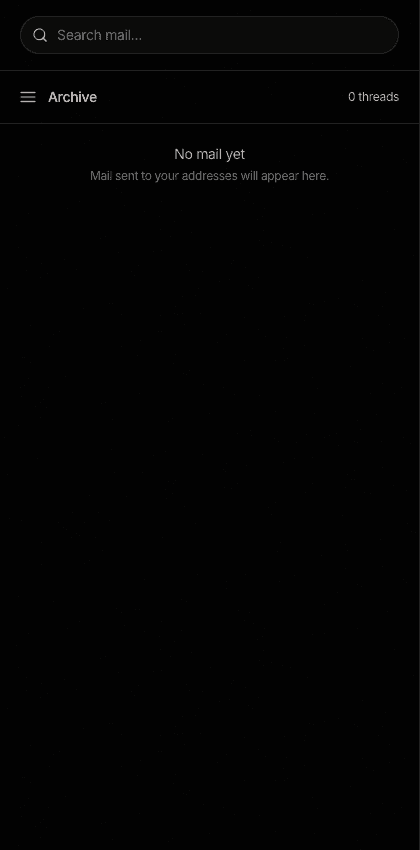
On a phone the three panes collapse into a single view: you flip between the folder and thread list and the open thread instead of seeing them side by side. Compose stays a focused window, and a drawer holds the account and folder controls.
First-run empty states
A brand-new account with no domains sees a prompt to add one. An account with a domain that has not verified yet sees a prompt to finish DNS setup, with a link to the domain's DNS page. The inbox only shows "No mail yet" once mail can actually arrive.
Building with the API?
See the API reference for Threads & messages.