Using the dashboard
Domains & DNS
Adding a domain is the first step after signing up. Emayler gives you the DNS records to publish; once they propagate, inbound mail starts flowing.
Add a domain
Open the Domains tab
In the dashboard, open the Domains tab and click Add domain.
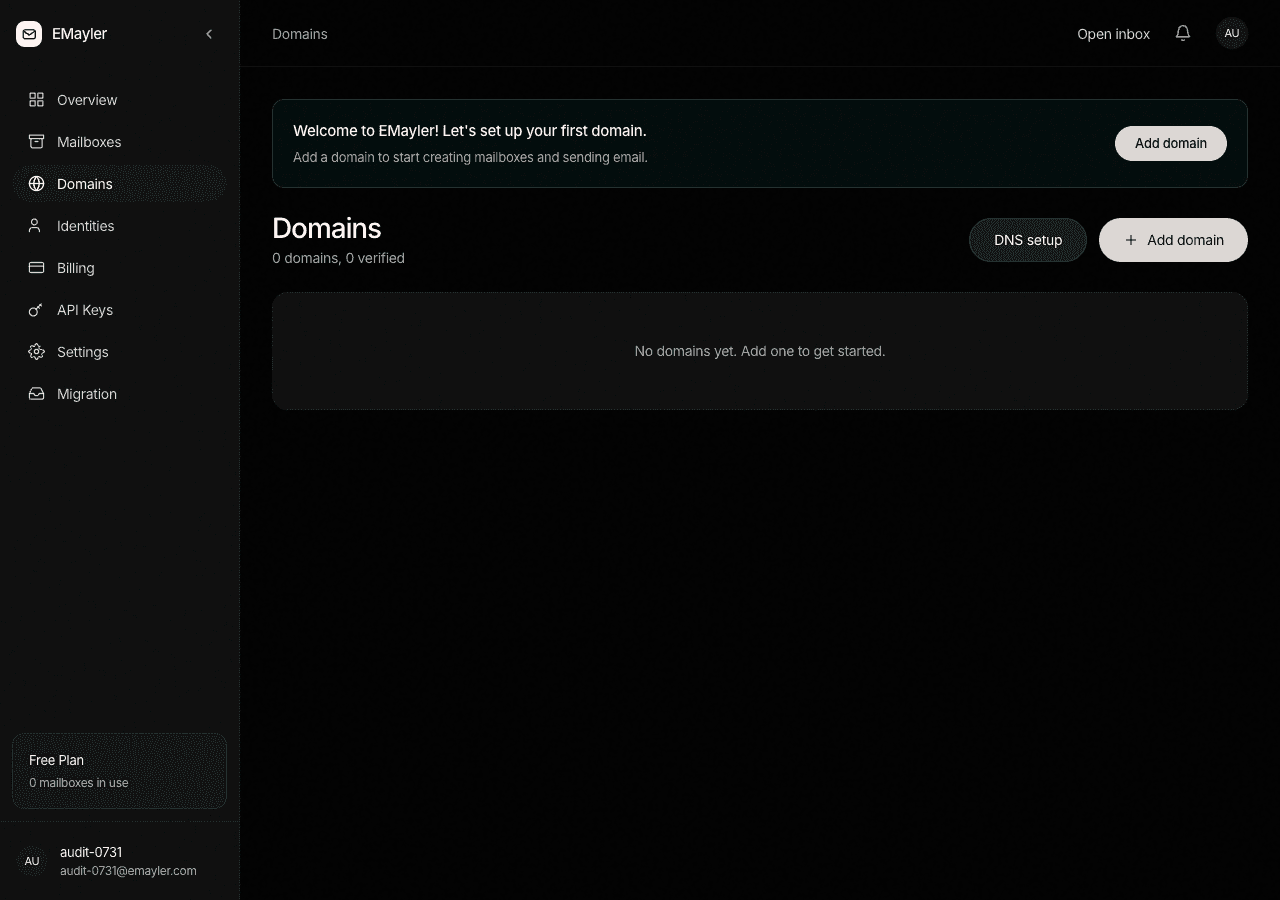
The Domains tab with the add button Type the domain name
Enter the bare domain, for example
example.com. The form validates in the browser before anything is sent: no scheme (https://), no path, nowww.prefix, no trailing dot, and each label must be letters, digits, or hyphens.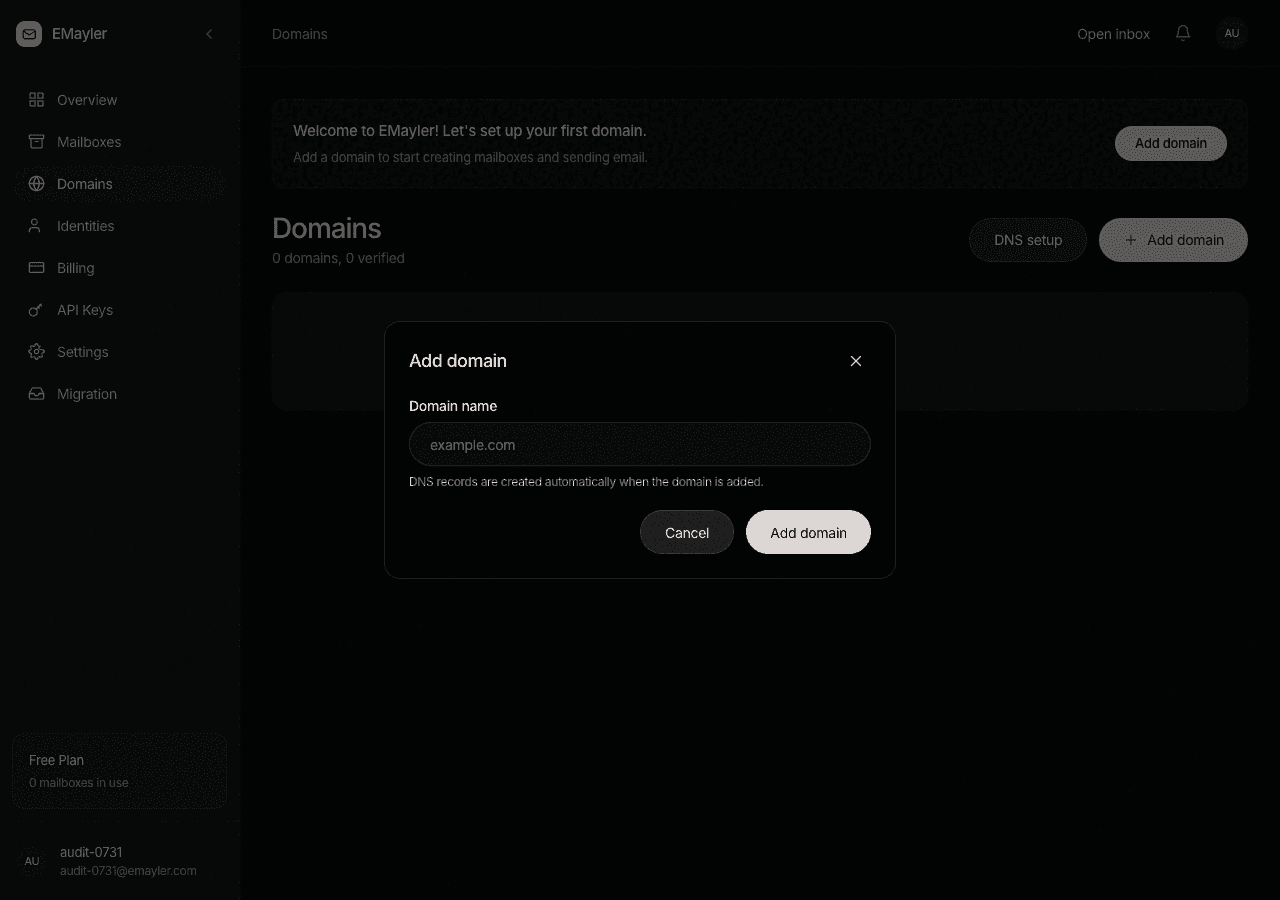
The add domain dialog
Publish the DNS records
Read the records you need
The dialog lists the records to publish at your DNS provider. For a domain you get two MX records, SPF and DMARC TXT records, a DKIM CNAME, and an ownership TXT token. Every record has a copy button.
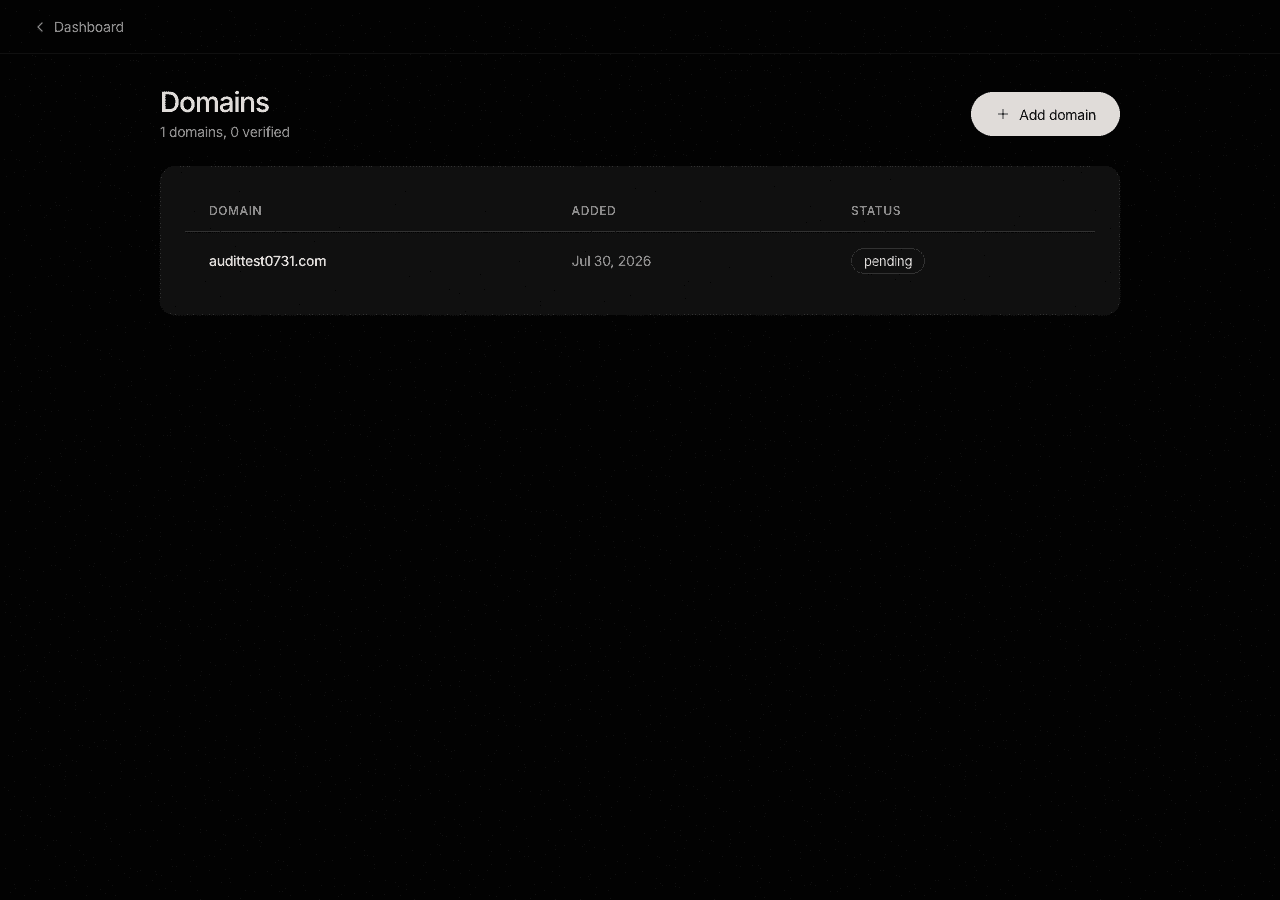
The DNS records to publish, with copy buttons Publish each record
Copy each record into your DNS provider and save. Emayler uses a CNAME for DKIM, so the key is delegated; rotation later never makes you touch DNS again.
Adding a domain is just the domain name plus DNS records at your registrar. There is no config file and no per-domain setup on the Emayler side.
Verification states
The dashboard shows a badge on each domain row while it verifies. The states are:
| State | Meaning |
|---|---|
not_yet_checked | Waiting. Emayler has not looked yet; not a failure. |
propagation_pending | Waiting. The old value (or nothing) is still visible; not a failure. |
verified | All expected records match. Inbound mail now flows. |
degraded | Something does not match. Open the DNS page for a fix message. |
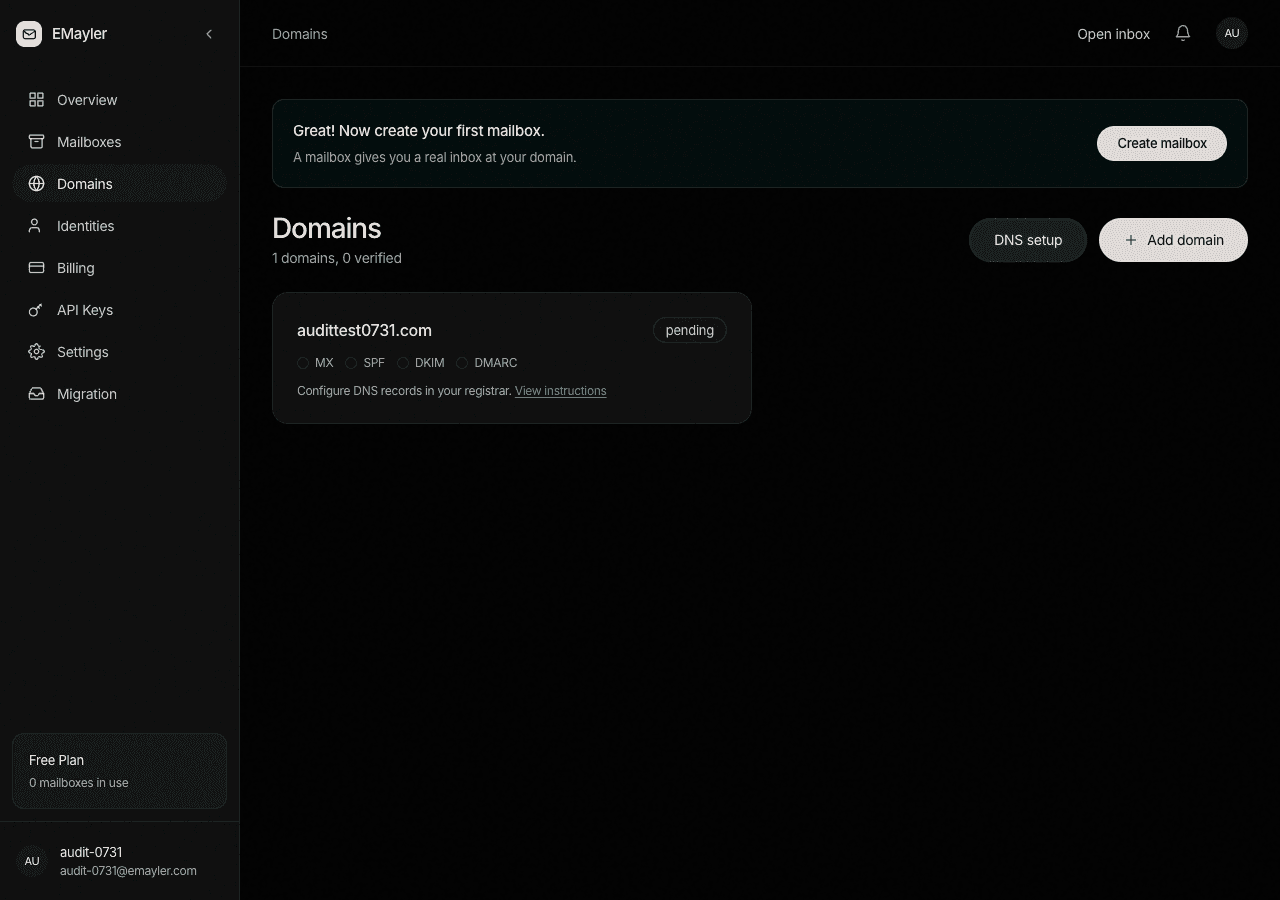
Check now
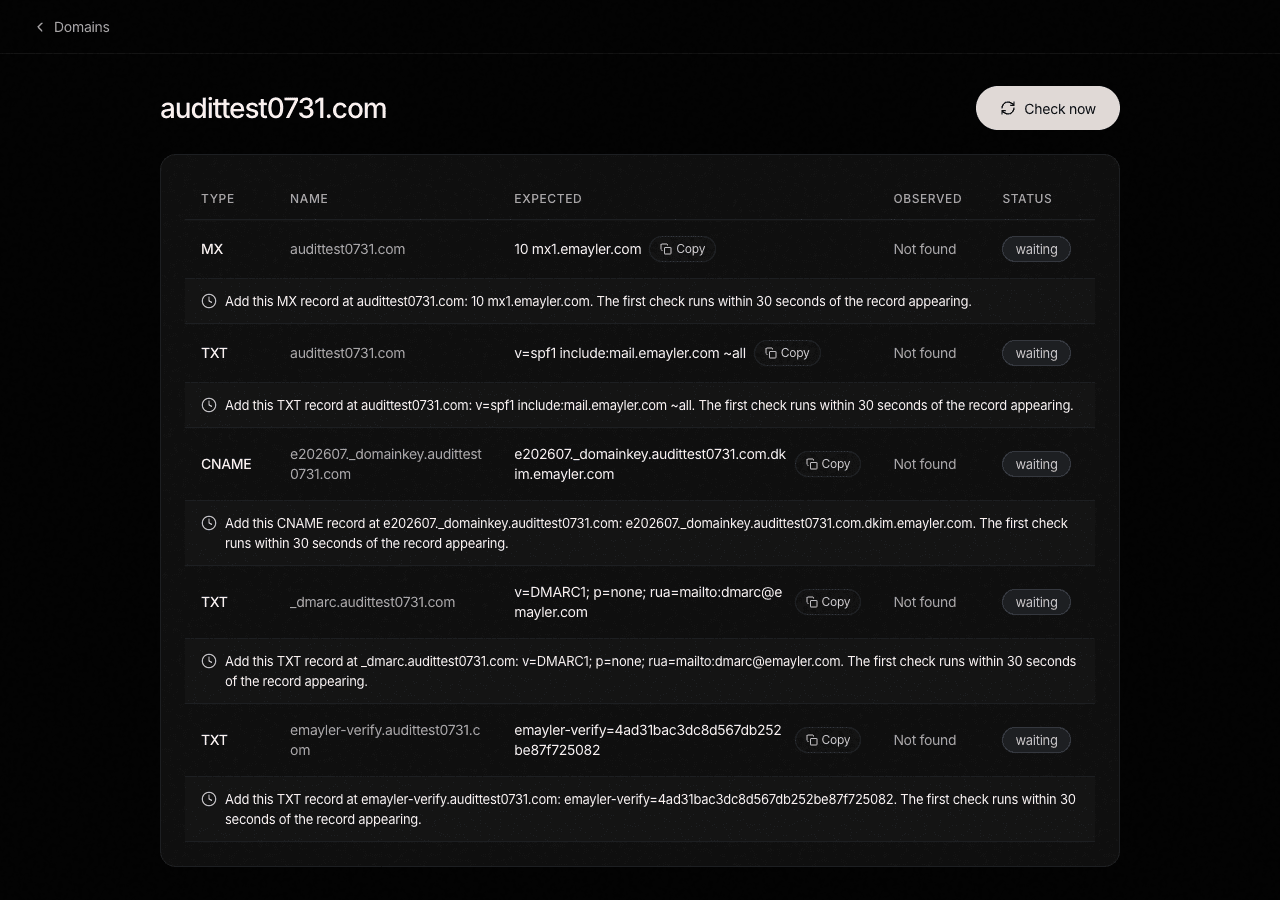
Emayler checks your records automatically. If you want to nudge it, click Check now on the domain; it is rate limited to once per 30 seconds per domain, so a manual check never spams your DNS provider.
Per-domain DNS page
Each domain has a detail page that lists every expected record with its observed value at your registrar. Where they differ, it tells you the exact record to add or change.
Automatic DNS write-back
If your registrar offers API access, Emayler can publish the records for you by storing a registrar token once. The dashboard does not expose this flow yet; use the API to preview and apply the diff.
Prefer to script this?
See the API reference for Domains.